Finding in the Wild | Microsoft Teams Is Installed, but Unavailable to the User

An issue I encounter repeatedly in Citrix VDI environments: Microsoft Teams is installed in the master image and works for the administrator. After MCS or PVS provisioning, however, users cannot start Teams. ❌ Teams is missing from the

An issue I encounter repeatedly in Citrix VDI environments:

Microsoft Teams is installed in the master image and works for the administrator. After MCS or PVS provisioning, however, users cannot start Teams.

❌ Teams is missing from the Start menu
❌ The application does not start
❌ Only some users are affected
❌ Reinstallation helps only temporarily

The cause? Often, missing MSIX registration in the user context.

New Teams is based on MSIX. System-wide provisioning and per-user registration must be distinguished.

An installed package does not automatically mean Teams is available to every user.

🔍 1️⃣ Check Teams provisioning

2️⃣ Registration in the user context

3️⃣ Analyze AppX errors

🛠️ 4️⃣ My workaround: register Teams again at logon

At several customers, I was able to resolve the issue by registering Teams again during user logon.

Run a scheduled task in the user context:

The command registers the already provisioned Teams package again for the signed-in user.

Important: the task must run in the relevant user’s context. It does not replace missing system-wide Teams provisioning.

🔧 5️⃣ FSLogix and Citrix UPM

Also check the following settings:

✔ FSLogix InstallAppxPackages
✔ Current FSLogix/UPM versions
✔ UWP app roaming in Citrix UPM
✔ AppX/MSIX permissions
✔ DisableAppInstallsOnFirstLogon
✔ Profile persistence and exclusion lists

The logon task is an effective workaround for missing user registration. In the longer term, however, the cause in profile management or the AppX registration process should be addressed.

💡 My takeaway

Installed ≠ provisioned ≠ registered.

In non-persistent Citrix environments in particular, registering Teams again at logon can make the decisive difference.

I have published a complete guide to installation, optimization, profile configuration and troubleshooting here:

Finding in the Wild | Citrix – When the Teams VDI Plugin Prevents ICA Launch

An interesting issue from the Citrix world: After installing or updating the Microsoft Teams VDI Plugin, Citrix applications and desktops suddenly fail to launch. ❌ ICA launch fails ❌ Applications and desktops do not start ❌ StoreFront and

An interesting issue from the Citrix world:

After installing or updating the Microsoft Teams VDI Plugin, Citrix applications and desktops suddenly fail to launch.

❌ ICA launch fails
❌ Applications and desktops do not start
❌ StoreFront and Delivery Controllers may still be reachable
❌ The issue appears only after the plugin is installed

🔍 Root cause – CVADHELP-34806

Citrix documents an issue in which installing the Microsoft Teams VDI Plugin can corrupt the VirtualDriverEx registry value.

This value is part of the Citrix ICA Client Engine configuration and is used to register additional virtual channel components.

If it is corrupted, the ICA session may fail to start.

🛠️ My troubleshooting approach

First, I check whether the issue coincides with a Teams VDI Plugin update.

Next, I check the following on the endpoint:

* Workspace App and Teams VDI Plugin versions
* The VirtualDriverEx registry value
* Differences compared with a working reference client
* Workspace App logs and the ICA launch process

The key check:

Read and compare the VirtualDriverEx value at this location.

✅ The fix

Citrix resolved the issue in Workspace App 2507.1 LTSR CU3 Hotfix 1.

My approach:

1. Back up the registry configuration before making changes.
2. Update the affected endpoint to the corrected Workspace App build.
3. Check the Teams VDI Plugin and virtual channel registration.
4. Retest ICA launch and Teams optimization.

Do not blindly copy registry values from other systems or permanently disable Teams optimization.

💡 My takeaway

When Citrix sessions suddenly fail to start, the cause is not necessarily the VDA, Broker or StoreFront.

Sometimes a faulty registry entry on the endpoint is enough to prevent the entire ICA launch.

A Teams plugin can therefore cause a Citrix launch failure long before Teams is even opened.

Install new Microsoft Teams (version 2) in Citrix

The new version of Microsoft Teams (often referred to as “Teams 2.0”) has been the new standard since July 1, 2024.

For VDI environments, this means:

  • October 1, 2024 → End of Support (Classic Teams in VDI)
  • July 1, 2025 → End of Availability

In short:
There is no way back.

Timeline VDI Clients
Continue reading “Install new Microsoft Teams (version 2) in Citrix”

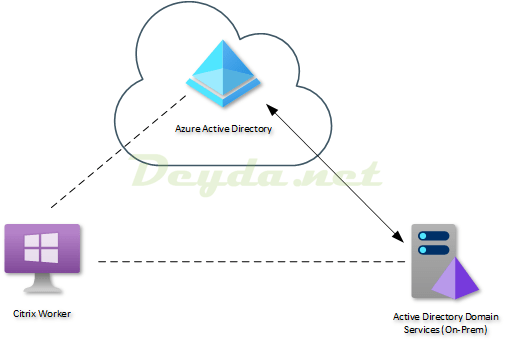
Why a Windows Server 2019 VDI should be Hybrid Azure AD joined

What is Hybrid Azure AD Join ?

Let’s just start with the official definition from the Microsoft documentation:

Hybrid Azure AD Join: Joined to on-premises AD and Azure AD requiring organizational account to sign in to the device.

This means that after the device is Hybrid Azure AD joined, it behaves the same as any other computer connected to Active Directory.

Sign in with an Active Directory account is required.
User credentials are verified against an Active Directory domain controller.
Group Policy objects for users & computers read from the domain controller are applied automatically.

Hybrid Azure AD Join

After the Active Directory connection process is complete, additional steps are performed asynchronously in the background to register the device in Azure AD as well.

Continue reading “Why a Windows Server 2019 VDI should be Hybrid Azure AD joined”

Install Teams & OneDrive in Citrix (Machine-Based)

Update of the existing article to the latest requirements and features.

Microsoft Teams

User Based Microsoft Teams

The standard installation that the user can perform, e.g. via the Microsoft365 Apps portal, is a user-based installation. In the Citrix environment, this is only recommended for desktop operating systems (pooled or personal desktop).

A User-Based Installation can be detected very quickly in the User Profile, because data are then located under AppDataLocalMicrosoftTeams.

Teams User Based Install

This type of installation in a worker with server operating system has many cons:

  • No control over the installed version
  • Several different versions possible installed on the same worker
  • Complete data (~1 GB) are in the user profile
Continue reading “Install Teams & OneDrive in Citrix (Machine-Based)”