

Table of Contents
If you’re a Citrix customer and thinking “next week…” right now — understandable. But starting April 15, 2026, file-based Citrix license files will no longer work. This is not a warning; it’s a hard shutdown date.
That means: if you haven’t migrated to LAS by then, you risk real outages (apps, desktops, or features depending on the component and version).
LAS is not a migration of your workloads to the cloud. Your site continues to run on-premises (DDCs, StoreFront, VDAs, etc.).
The only thing that changes is the activation and licensing mechanism.
What is LAS — and why you should deal with it now
LAS (License Activation Service) is the cloud-based activation method for on-premises license servers and components. No more downloading, uploading, or renewing license files. Instead, you register the license server in Citrix Cloud, and activation is renewed automatically.
Important mindset shift:
- The license server is no longer the checkout bottleneck it used to be: However, you’ll also see less real-time usage visibility in the license server.
- Connectivity matters: If LAS cannot be reached, caching and grace periods will keep things running for a while — but without connectivity for too long, things will eventually stop working.
Prerequisites (the common pitfalls)
1) Minimum Version
To use LAS, you need Citrix License Server 11.17.2 build 53100.
This version can license the following components:
- CVAD 2203 LTSR CU7 or later
- CVAD 2402 LTSR CU3 or later
- CVAD 2507 LTSR or later
- CVAD 2411 or later
- PVS 2203 CU7 LTSR or later
- PVS 2402 CU3 LTSR or later
- PVS 2507 LTSR or later
- WEM 2507 or later
2) CVAD / Web Studio: Versions must match
If the Delivery Controller and Web Studio / Studio are not running compatible versions, the “Migrate to LAS” button or workflow may be missing or behave incorrectly. Additionally, the Delivery Controller and Web Studio must be on the same version. LAS cannot be activated through the License Server MMC console. The migration must be performed via Studio / Web Studio.
3) Firewall / Proxy / Deep Inspection
Outbound HTTPS / 443 to the Citrix Cloud / LAS endpoints must work properly. SSL deep inspection is the classic culprit — it claims “everything is open”, while in reality things are still broken.
You can use Thomas Kötzing’s PowerShell script to verify connectivity.
Firewall Allow Rules
https://las.cloud.com:443https://customers.citrixworkspacesapi.net:443https://trust.citrixnetworkapi.net:443https://trust.citrixworkspacesapi.net:443https://cis.citrix.com:443https://core.citrixworkspacesapi.net:443
4) Registration: 1 License Server → 1 Cloud Org / CCID
A license server can only be registered to a single Citrix Cloud organization (CCID). Changing the organization is possible, but only by unregistering the license server and then registering it again with the new Citrix Cloud organization.
The Practical Flow: From “Blue” to “Green”
Many people see the “Registered” status in Citrix Cloud (usually shown in blue) after registration and think: “Alright, done.”
Nope. In the LAS context, blue often only means:
- The license server is known / registered, but
- it is not actually fully activated yet (for example because no products are activated or LAS is not reachable).

Register the License Server in Citrix Cloud (establish the foundation)
- Log in to the License Server (Citrix Licensing Manager GUI).
- Open the Dashboard.
- Navigate to the License Activation Service (LAS) tab / section.
- Click “Go to Registration.”
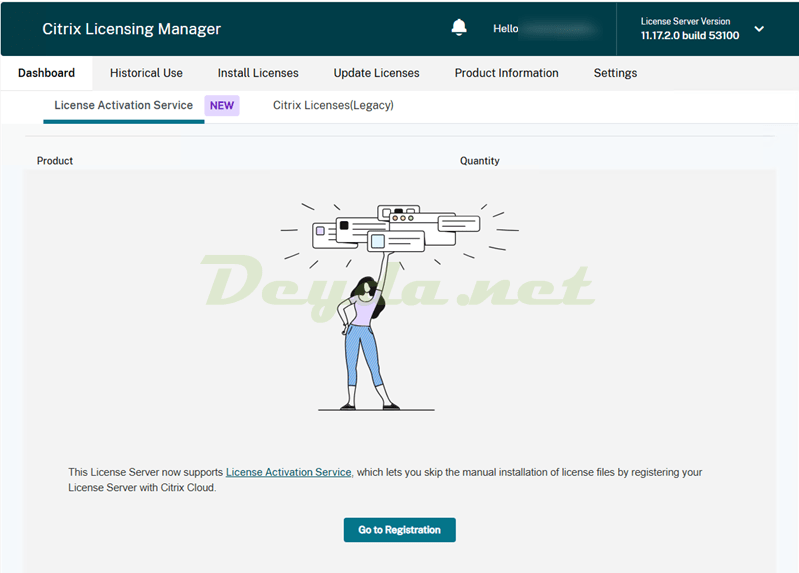
- Generate and copy the 8-digit code.

- Log in to Citrix Cloud.
- Go to Licensing → Licensed Deployments.

- Go to License Servers → Add License Server

- Paste the code and click Register.


Expected result:
The License Server appears in Citrix Cloud and is at least registered.

The local License Server will now also show a clean status indicating that the server is registered with Citrix Cloud and that the online activation service is active.
You can verify this on the local Citrix License Server under:
Settings → Register.

The Critical Step Many People Miss: Actively Switch the CVAD Site to LAS (Web Studio Method)
- Open Web Studio.
- Go to the Licensing section.

- Start “Migrate to LAS” and follow the wizard through (in the specified order).


This is the missing step many people do NOT perform, because:
- it is not obvious,
- the License Server already looks “nice and blue”, and
- people assume that this is the final state.
Expected result:
The CVAD site switches to LAS mode and activates products through LAS.
Important note from practical experience:
If you are running DDCs / Web Studio in mixed versions (hybrid / inconsistent), the “Migrate to LAS” button may be missing or behave unpredictably.
In that case, it’s not bad luck — it’s a setup problem.
The Critical Step Many People Miss: Actively Switching the CVAD Site to LAS (MMC Console Method – 2203 CU7)
- Open the Citrix Studio MMC Console.
- Go to the Licensing section.

- Start “Migrate to LAS” and follow the wizard.


This is the step many people do NOT perform, because:
- it is not obvious,
- the License Server already looks “nice and blue”, and
- people assume that this is the final state.
Expected result:
The CVAD site switches to LAS mode and activates products through LAS.

The Critical Step Many People Miss: Actively Switching the CVAD Site to LAS (PowerShell Method)
- Connect to a Delivery Controller and open an administrative PowerShell session.
- Run the following command.
|
1 |
Set-ConfigSite -UseLicenseActivationService $true |

Disabling LAS Again
In certain scenarios—such as troubleshooting, migrations, or rollback situations—it may be necessary to temporarily or permanently disable LAS and return to the classic licensing model.
To disable LAS in a Citrix site, run the following PowerShell command on a Delivery Controller.
This will disable communication with the License Activation Service and switch the license server back to the classic licensing mode.
|
1 |
Set-ConfigSite -UseLicenseActivationService $false |
Afterwards, you should verify that the Citrix License Server is being used correctly again and that the Delivery Controllers are able to obtain valid licenses.
In some environments, it may also be advisable to restart the Citrix Broker Services or the Delivery Controller to ensure that the change is fully applied.
Entitlements Sync – Be Patient, or You’ll Just Create Trouble for Yourself
After registration / activation, it often takes some time until entitlements appear consistently everywhere.
Typical timeframe: 12–24 hours until everything is fully synchronized.
In practice, this often leads to the classic situation:
- 10 minutes after migration: “I still don’t see anything!”
- 20 minutes after migration: “The firewall must be broken!”
- 30 minutes after migration: “Let’s roll back!”
Meanwhile, 12 hours later it would simply have turned green automatically.
Recommendation:
If everything is technically correct (connectivity / endpoints), give the system time.
Panic is not a troubleshooting tool.
Mini-Checklist: “Why Am I Still Blue?”
If you still see “Blue / Not activated” after 24 hours, go through this checklist step by step:
- Are the LAS endpoints reachable (outbound TCP 443)?
- Was “Migrate to LAS” actually executed in Web Studio or MMC Studio?
- Are the management component versions consistent?
- Do you see the entitlements in the License Server GUI after the sync period?
Status Colors — Short and Brutally Honest
So you instantly know what’s going on when looking at the dashboard:
- Green: Everything is properly activated, renewal is working.
- Blue: Registered, but either
(a) LAS is not reachable, or
(b) no products are activated yet. - Orange / Red / Grey: Renewal, expiry, or connectivity issues — this is not decoration, it means “handle me.”

Remember: Blue is not success — blue is a hint.
Activating WEM (Workspace Environment Management) with LASWEM (Workspace Environment Management) and LAS
WEM supports LAS starting with WEM 2507.
Practical considerations:
When configuring the Infrastructure Services and the Administration Console, you must accept the LAS security certificate.
Everything else follows the same basic principle:
- The License Server must be LAS-ready
- Connectivity to Citrix Cloud / LAS must work
- The product must point to the License Server for licensing.
NetScaler: LAS — but Check the Version First
For NetScaler, the most important truth is: LAS only works starting with specific builds.
Minimum versions:
- NetScaler ADC: 14.1-51.80, 13.1-60.29, 13.1-37.247 (FIPS)
- NetScaler Console on-prem: 14.1-51.83
Firewall allow rules:
- https://download.citrixnetworkapi.net
- *.citrixnetworkapi.net
- trust.citrixworkspacesapi.net
- *.agent.adm.cloud.com
- *.adm.cloud.com
- adm.cloud.com
- citrix.cloud.com
- accounts.cloud.com
Zusätzlich ist der 15. April 2026 auch hier die harte Kante für file-based licensing.
High-level approach:
- Upgrade NetScaler / NetScaler Console to a LAS-compatible version
- Switch NetScaler Console / Service or NetScaler licensing to LAS
- Verify connectivity, proxy settings, and SSL inspection (the same story as with the License Server) Service bzw. die NetScaler-Lizenzierung auf LAS umstellen
- Connectivity / Proxy / SSL-Inspection prüfen (gleiches Spiel wie beim License Server)
NetScaler LAS Offline Activation
- Got to your NetScaler NSIP and login
- Go to System > Licenses and click on LAS Offline Activation

- Click on Generate and Download the file


- Go to your Citrix Cloud site and click on Licensing > License Activation Service > NetScaler

- Click on Activate Offline

- Drop the downloaded file here

- Select your license type under point 2 and click Continue

- Click on Generate activation file and download the result

- Go back to the NetScaler and click on Upload File. Select here the generated file from the cloud and confirm the popup

- If you go back to License you should see now the Active License
